MindFull List is a simple checklist program that syncs your checklists with devices on your iCloud account including other iPhones, iPads, Apple Watch and Macs.
Help for Mac OSX MindFull List
Help for Apple Watch MindFull List
Help for iPhone and iPad
iCloud Drive should be enabled.
Information at the bottom of this page
Creating a New List
Naming the List and Selecting a Color
Adding items to your New List
Deleting or Editing Items from Your List
Incomplete and Complete All
Today List
iCloud Drive
Sharing Lists
Rename a List
Creating a New List
Tap on the Plus icon to create a new list.
Then tap on New List (Not iCloud Drive)
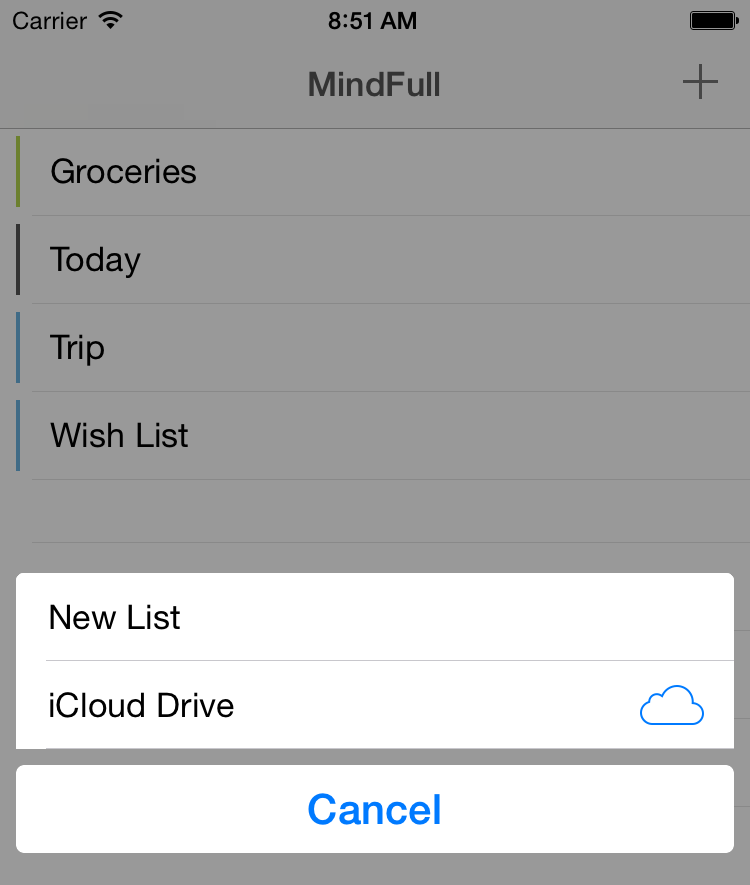
Note that if you tap on iCloud Drive, it looks for a list to open from iCloud Drive. It will normally not find any lists to open in iCloud Drive.
Tapping on New List is the correct procedure because it saves your new list in the Mobile Documents folder, which is the default location for other devices you want to sync with your lists (Other iPhones, iPads and Macs running MindFull List)
Naming the List and Selecting a Color
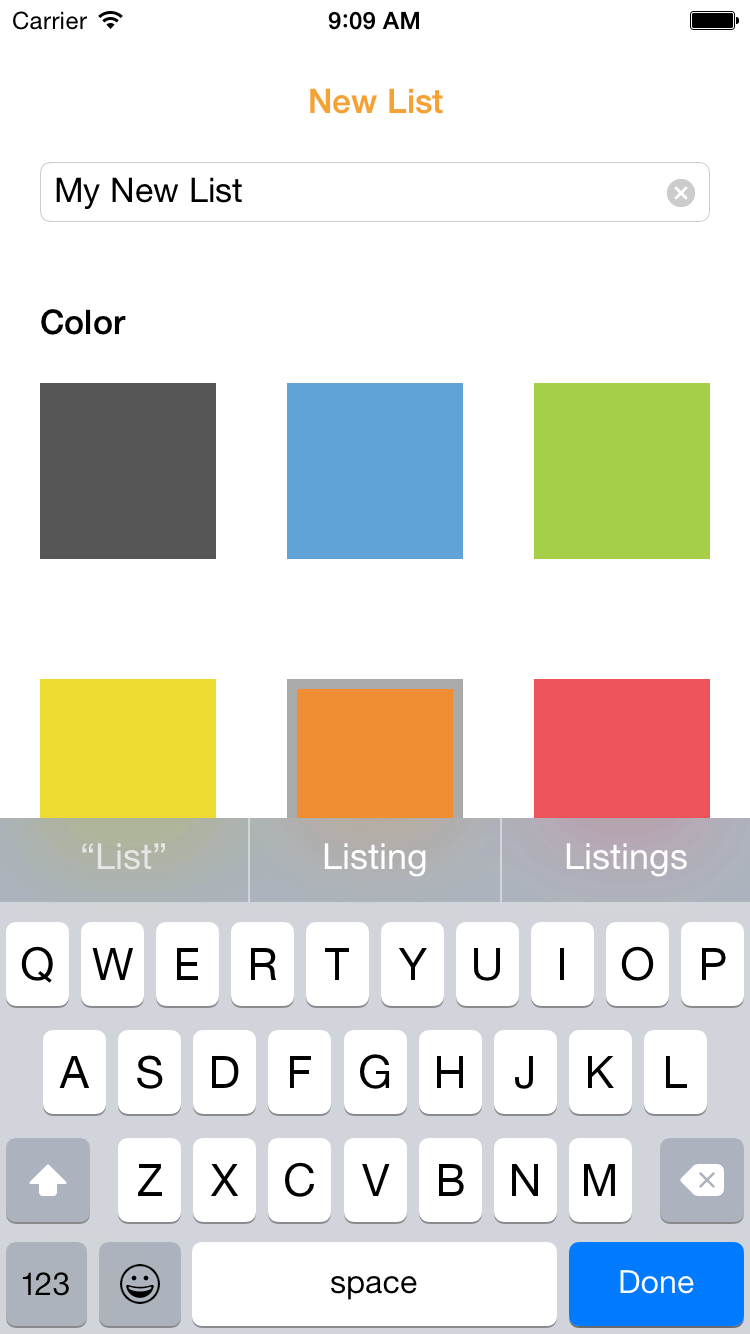
Enter a name for your new list.
Then tap on the color for your new list.
Tap Done and then tap Save at the lower left of the screen.
Adding items to your New List
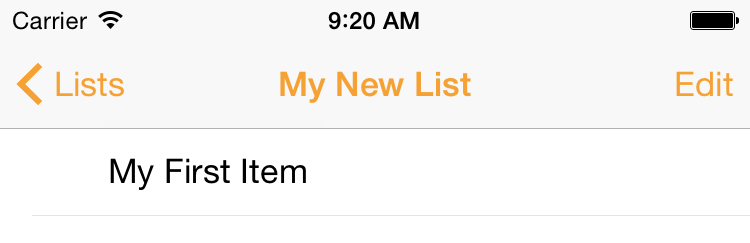
Tap on Add Item near the top of the screen and enter your new item text.
Note that you can also speak your new item text by tapping on the microphone in the keyboard.
Then Tap Done.
Tap on Lists to see all of your lists.
(tapping on Lists also updates iCloud)
Deleting or Editing Items from Your List
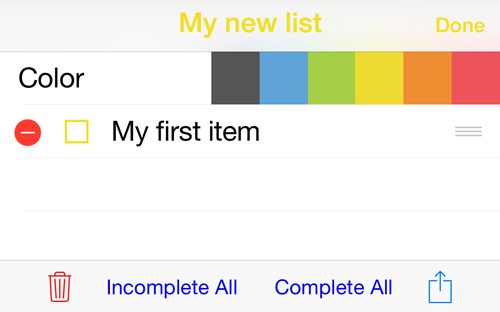
Tap on Edit
You can tap on the red minus sign next to the item you want to delete.
Or you can tap on the item name to edit the name.
Tap on the Trash icon and you can choose to delete Completed items from the list or delete the entire list.
(prior to version 1.2, you could only delete the entire list)
Incomplete All and Complete All
Tap on Incomplete All to uncheck all items in the list.
Tap in Complete All to check all items in the list.
Today List
Note that a Today list only has items that you add. It does not automatically add items from other lists. You cannot delete a Today List. It is used by the Apple Watch for glances.
iCloud Drive
MindFull List uses iCloud Drive on iOS devices (iPhones and iPads).
You need to be logged into iCloud and have iCloud Drive enabled.
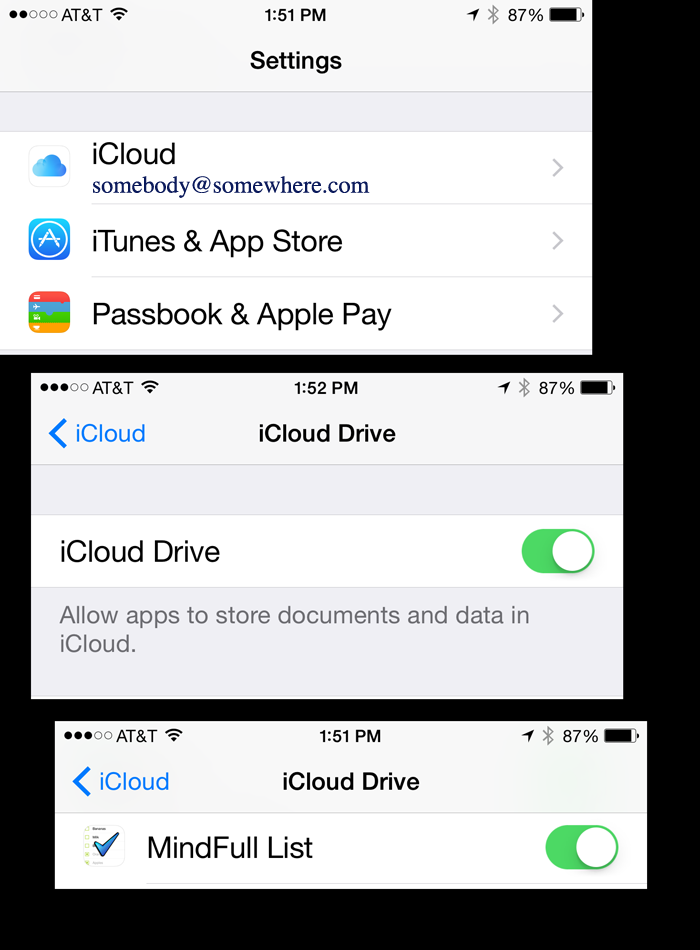
Open the Settings app and tap on iCloud.
If it is not logged in already, then log in.
Then tap on iCloud Drive (under the Storage heading).
iCloud Drive should be ON
Now you should see all of the apps that use iCloud Drive.
Scroll down until you see MindFull List and it should be ON
Sharing Lists
You can share your lists with others via Mail, Twitter, Messsage, Dropbox etc.
(with MindFull List 1.2 or later).
Tap on Edit at the top right of the screen when you are viewing your list.
Then tap on the Action icon at the bottom right of the screen.

You can share the entire list or just share incomplete items.
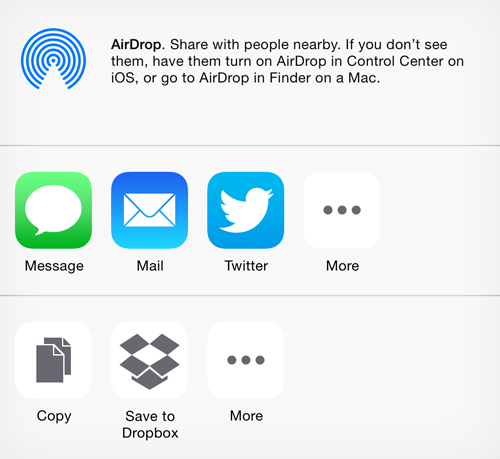
NOTE: Lists are shared as text items.
If you want to share a list that can be loaded into MindFull LIst by another user, the Mac OSX version can do that.
Use the Mac OSX version of MindFull LIst to share your lists.
Info for sharing lists with the OSX version is here
Rename a List
Lists cannot be renamed on the iPhone. Use the Macintosh version of MindFull List to rename lists. All lists on the Mac are synced to the iPhone, iPad and Apple Watch.
http://carnationsoftware.com//MindFullList_OSX_Help.html#RenameList
|



