MindFull List is a simple checklist program that syncs your checklists with devices on your iCloud account including other iPhones, iPads, Apple Watch and Macs.
Go shopping with your Apple Watch and iPhone. Check off items on your Apple Watch as you purchase them.
Help for Mac OSX MindFull List
Help for iPhone and iPad MindFull List
Help for Apple Watch
Apple Watch will require a connection to an iPhone 5, 5s, 5c, 6, or 6 Plus running iOS 8.2 or later..
After paring your Apple Watch to your iPhone, you will be able to view your lists on your watch and check off items in the lists. The lists on your other devices will update to show the checked off items. You cannot add items with your watch. That must be done on your iPhone, iPad or Mac.
MindFull List should be running on your iPhone while using MindFull List on your Apple Watch.
With version 1.3 or later, it can be running in the background (even when iPhone is sleeping).
Installing MindFull List on Apple Watch
First, install MindFull List on your iPhone
Open the Apple Watch App
Scroll down to find MindFull List and tap on it.
Move the sliders to enable "Show App on Apple Watch" and "Show in Glances"
It will say Installing...
Then it will say Installed.

Now you can see the MindFull List icon on the Apple Watch and tap on it to run.
Using Siri to open MindFull List on your Watch
Activate Siri on your Apple Watch and say "Open MindFull List"
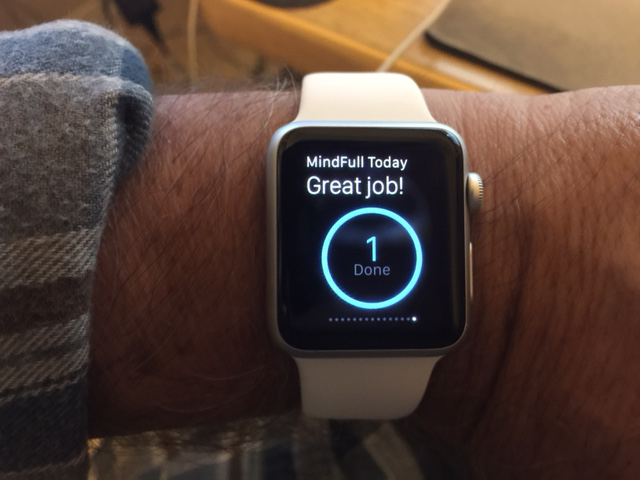
Glances to show MindFull Today
When you swipe upward from the bottom of the watch (when viewing the watch face), you will see a glance view for MindFull Today.
This shows the status of your Today List. The glance view may be a different app because it remembers the last glance used. You can swipe right or left fo find the glance view for MindFull Today.
Then tap to open the Today List.
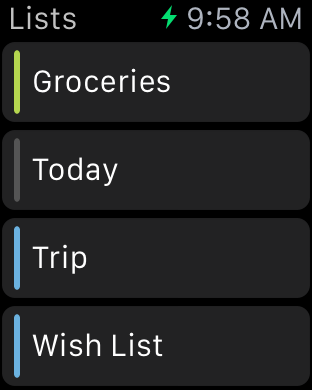
You can also get to your other lists by tapping on <Today at the top left.
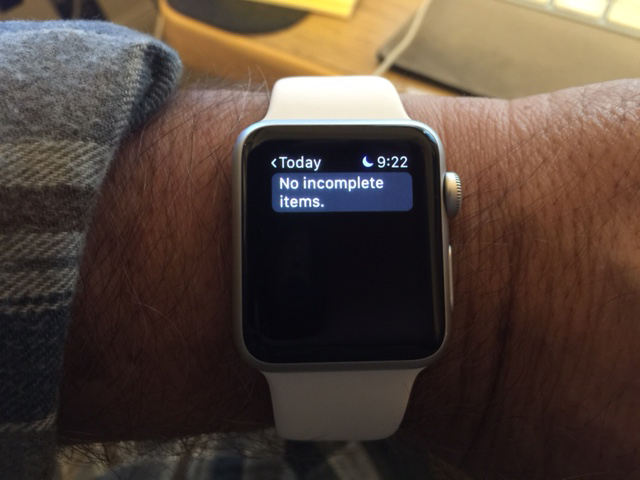
Note that the Today List only contains items that you put there with your iPhone, iPad or Mac.
It does not migrate items from other lists.
Shopping with Apple Watch and your Shopping List
Tap on MindFull List on your iPhone to make it the active application.
(with version 1.3 or later, it can be running in the background)
On your watch, tell Siri to "Open MindFull List"
As you are shopping in the store, you can use your watch to check off items as you purchase them.
The default watch setting displays the watch face after a short period of time when you are not using MindFull List. This can be a source of irritation because you need to double tap the watch crown to switch from a watch face back to MindFull List.
To avoid this problem, you can change the default setting...
On your watch, tap on the Settings Icon.
Then tap on General.
Scroll to "Activate on Wrist Raise"
Change the setting from "Clock Face" to "Last Used App"
NOTE: Some stores have a weak cellular signal or sometimes none at all. So your lists may not synchronize to other Apple devices until you exit the store.
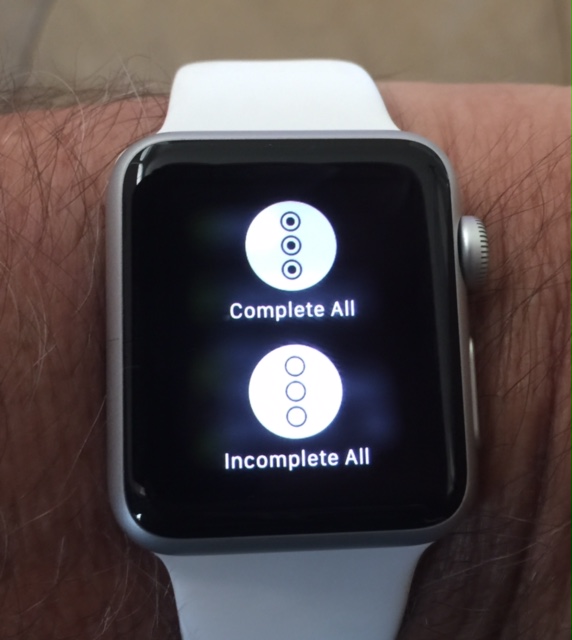
Complete and Incomplete All Using Force Touch
When you are viewing a list on your watch, you can check or uncheck all items on the list by doing a force touch. Tap and hold to do a force touch. Then tap on Complete All to check all items on the list. Or tap on Incomplete All to uncheck all items on the list.
Note that the watch only shows items on the list that have not been completed.
Therefore, doing a Complete All or Incomplete All only affects the items shown on the watch screen.
To see the entire list, use your iPhone or Mac. On the iPhone, you can edit the list and then tap on Check All or Uncheck All for the entire list. On the Mac, Complete All and Incomplete All is under the Edit Menu.
|



