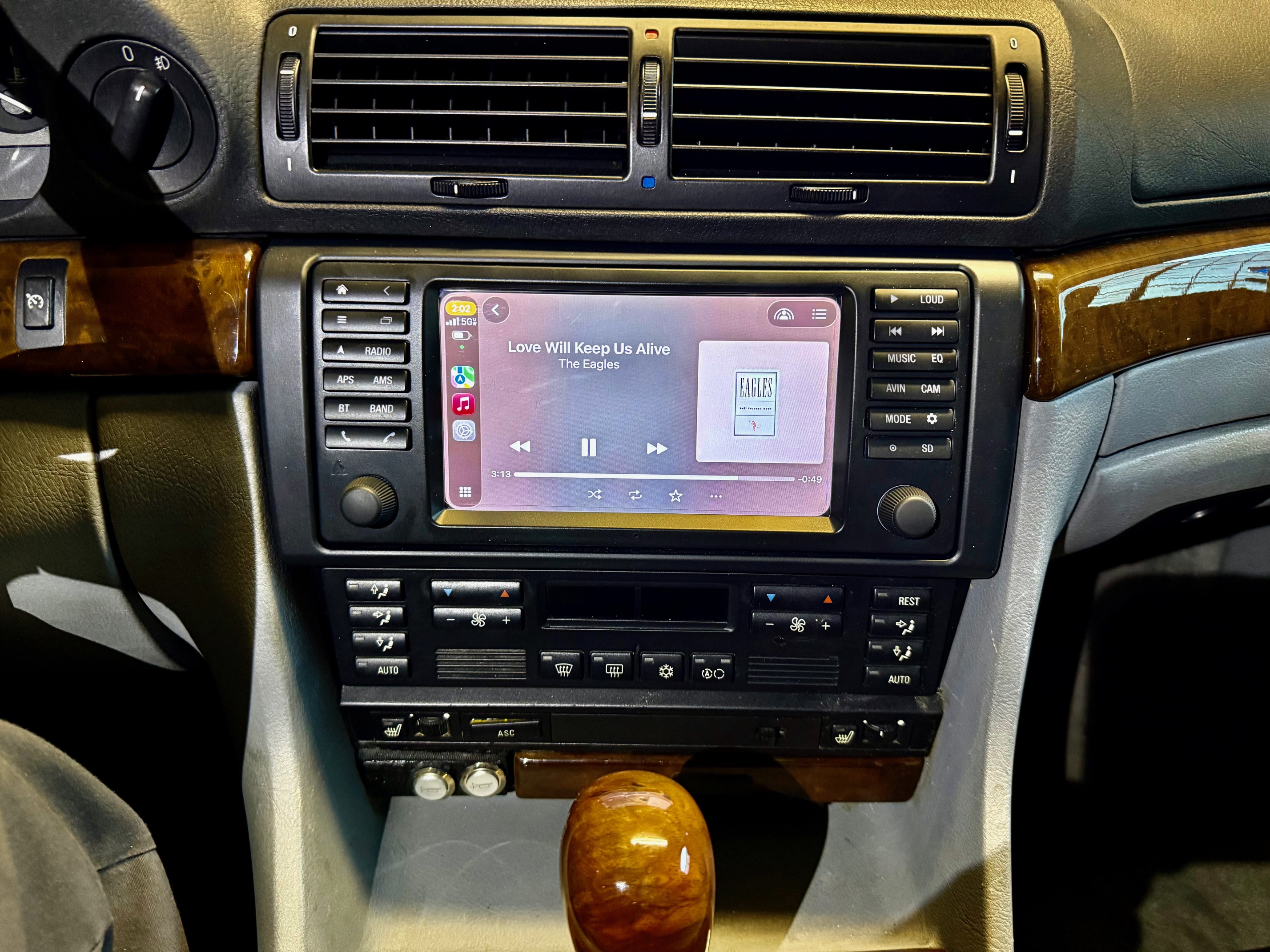
Daylight with no amber buttons
AVANT 4 from avinusa.com
https://avinusa.com/avant-4-multimedia-navigation-system-for-bmw-7-series-E38.html
Avant 4 e38 Installation Guide
https://help.avinusa.com/en/article/avant-bmw-e38-7-series-installation-guide-x6d3dl/
I like this Avant 4 head. It looks great. You would think that it was a factory item because it matches the car dash so well.
I have the DSP model with 6 gb memory and a 256 gb thumb drive.
It sounds great and it is so nice to have Carplay music, navigation, backup camera, digital radio and iBus onboard computer screen.
Their website says "Effortless installation." If that is a joke, they have a great sense of humor. There is no way it is effortless.
However, I finally got it working perfectly after much consulting with Gemini AI.
These notes should help anyone doing a similar installation.
Mounting frame.
I got the frame from newer model E38 BMW with Navigation (bottom is different so cut it off with hacksaw). Had to use that newer frame because it was impossible to find a frame for my older model E38. The bottom row where the seat heater controls differ in the later model E38's.
CanBus stick is required to get the backup camera to work. It also makes steering wheel buttons work. 20-pin connector on the cable for the CanBus stick will plug into the circuit board, but do not do it, as it will fry the yellow power wire. Plug that 20-pin cable into the CanBus stick.
The iBus stick gives you access to onboard computer information and has steeringwheel controls and other features.
USB ports:
Single port connector is for Carplay. It is a faster connection and has more power.
Dual port connector is port 2 and 3, even though the cable is labeled 1 and 2.
Port 2 is for the iBus Reseler USB stick
Port 3 is for the external USB storage thumb drive.
Carplay USB Stick:
The black wireless Carplay USB stick from Avin has audio dropouts with Carplay music. Plug a CarlinKit Mini wireless into the USB port of the black stick and it will override the wireless and use the CarlinKit Mini wireless for a solid audio connection with no dropouts. Get it from Amazon...
CarlinKit MiNi Ultra Wireless CarPlay & Android Auto Adapter.
Backup Camera
I am using the PixelMan Backup Camera, AHD 1080P from Amazon.
I ran a video cable from the camera to the Avant 4 head.
You need the backup camera cable supplied by Avin.
The camera automatically displays on the Avant 4 when the car is in reverse.
Make sure you install the CanBus card to get it to recognize the reverse shifter.
Cut the orange wire on the PixelMan wiring to get AHD video. It is higher quality ( Analog High Def ).
TPMS Tire Pressure Monitoring System
The TPMS kit from Avin includes a cable haarness that plugs into two places on the Avant 4.
If you have already installed the Avant 4 and got everything working, you need to replace the USB cable you already installed with the one in the kit.
That new cable will add a USB port connector for the TPMS stick.
It replaces the backup camera port and USB 1 port ( backup camera still works ).
It has a USBc connector for the Carplay stick and a 5 pin black connector for the black TPMS stick.
In the factory settings menu on the main screen, the TPMS setting must be set to "TPMS_01 HCT(YunTu)" for the TPMS app and receiver to work.
Then open the TPMS app and press on each sensor on the screen to pair it.
There must be pressure on the sensor to enable paring.
You can then set the high and low pressure warnings.
The installation and paring guide is here:
https://help.avinusa.com/en/article/tpms-a4-pairing-and-installation-guide-12budoq/
Screen Glare
You must use an anti-reflective screen protector because the Avant 4 screen is very reflective. I found it to be unusable in daylight.
I tried several anti-glare protectors including the one from Avin.
Most of them are a matte finish which does reduce glare but also makes the screen blurry and harder to see.
I finally found a very good solution from Photodon
https://www.photodon.com
They have several different types of film.
The one I like the best is ARC Clear. It is not a matte finish.
It has some reflectivity but you can still see the screen clearly in daylight.
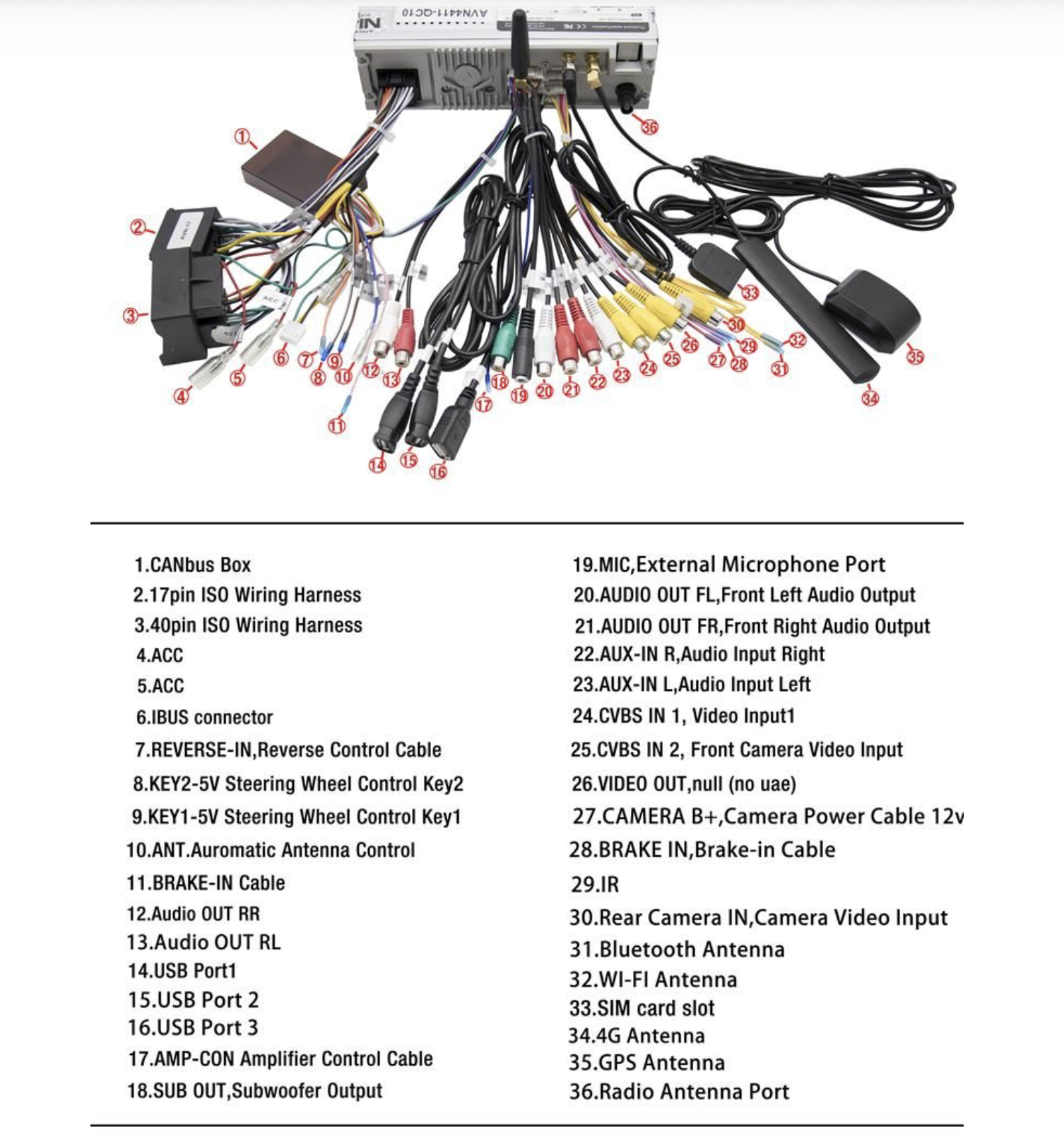
Wiring Diagram
https://www.carnationsoftware.com/BMW/Avant4/Avant4_WiringDiagram.png
Here is the web page for the wiring diagram that Avin support sent to me.
It has useful information but also some misleading information.
It says to connect the reverse wire for the backup camera but that is not necessary when using a CanBus card.
https://help.avinusa.com/en/article/avant-4-wiring-diagram-1cgpoel/
1. Intermittent black screen with Carplay.
I fixed the blank screen by changing decoding mode from hardware to software. It is in the AutoKit settings.
Gemini AI says that this will force the screen to update more reliably. You need to see the gear icon in the upper left corner of the AutoKit screen to see the decoding mode option. You can only see that icon when the app is hunting for the Carplay stick during power-up. Or you can force quit the AutoKit app and tap on the gear icon when it is trying to connect.
2. Carplay app crashes ( AutoKit app ):
On your iPhone, change the iPhone Cellular Streaming audio quality to High Quality instead of 'lossless' ( lossless requires too much bandwidth ).
( Settings / Apps / Music / Audio Quality / Cellular Streaming / High Quality )
Also, turn off SDVC ( speed dependent volume control ) because it needs extra CPU cycles to continually check the speed to change the volume.
3. Radio and USB stick music continues playing when switching back to Carplay music.
I fiixed this by installing the Tasker app and creating a script to kill radio and USB music when AutoKit is launched. Tasker is available on the Google Play store.
4. iBus App
The iBus app must be launched at least one time upon power-up to make steering wheel buttons work. It must be brought to the foreground at least once ( not just running in the background ). The most reliable way to do this is with a Tasker script that launches the iBus app whenever the display turns on.
The iBus app can also cause memory problems that lead to hangs with Carplay.
When you turn off the ignition the iBus app remains in an idle state. This can lead to memory that does not get cleared the next time you drive.
The solution is to make the iBus app quit each time you turn on the ignition then pause for a second and then launch the iBus app.
I do this with the Tasker app.
First create a new task as an event with the action Display On
Then create a script for that task that looks like this:
1. Kill App 2. 3. Launch App |
5. Steering wheel buttons
In "Steering wheel" factory settings, you need to enable CanBus, and use the CanBus card.
When you install a CanBus card, a WheelKey Study app gets installed, which lets you define steering wheel buttons. I assigned the R/T button to play and pause music.
In the iBus app...
Tool icon / Other / Steering Wheel Button Control
Put a checkmark on Steering Wheel Button Control and the PX6/PX5/PX3 device.
Also, in iBus settings, Steering Wheel button control...
I defined 'R/T' button as 'None'.
I defined the 'Phone' button as 'Navigation'.
I defined the 'Previous' button to launch the iBus app with a 'long press'.
NOTE: Do not try to define the R/T button as a document switcher. It causes Carplay to stop playing sound and it breaks the forward and reverse buttons. Define it as 'NONE' instead.
6. Set up Carplay on iPhone
General Settings / Carplay
Make sure it is not set to CarKit or AutoKit if you are using the CarlinKit Mini. It should be something like VehiConn. You can set up widgets there also. Don't set up too many widgets that are active, which can cause too many CPU cycles in the Avant 4 head.
7. Voltage will not display on the iBus app screen with my early production 1995 E38.
However, it will display at the top of the home screen in the menu bar.
8. If you have problems with Units reverting back to Centigrade from Fahrenheit, delete the iBus data and enter new settings.
Also, a good idea is to backup iBus settings:
iBus Settings / General App Settings
Scroll to the bottom
Import/Export App Settings
9. USB Thumb drive ( USB 3 )
This is optional, but highly recommended.
I purchased a 256 GB thumb drive from Amazon, which I then formated with FAT 32.
There is a music folder on the USB stick. That folder is automatically created along with other files and folders. You can put your own music in the music folder. Create folders inside of that folder for your music. It is the music that is used when you press the Music button on the Avant 4 head ( It is not Carplay music ). The files should be WAV format, which is the highest quality uncompressed music.
10. There are a myriad of confusing menu items in the Avant 4 Android system.
The iBus app has its own settings, but sometimes you will find yourself in the Android Settings menu. Some of those Android settings are relevant, and some of them are overridden by the iBus app.
To get into Android Factory settings, use the password '126'.
The Carplay app is called AutoKit. It has its own settings also, but you cannot get to them unless you can see the settings icon in the upper left corner of the screen, as mentioned earlier.
11. AutoKit - the latest version.
The Avant 4 may ship with an older version of the AutoKit app. When you run that app for the first time, it may ask you to upgrade it. I did that, but it is limited to upgrading the current release year. In my case, that was the 2023 version ( it is now early 2026 as I am doing this installation ). To get the latest version, you must go to the Carlin Kit website: https://www.carlinkit.com/download.html
When you download a newer version of an app on your Mac or PC, you can transfer it to your USB thumb drive. Then go to the Android settings and tap on Apps. Delete the old version of the app. Then use the Android file browser to find the updated file on your thumb drive and tap on it to install.
12. Private Wi-Fi Network
iOS 26.3.1 can cause problems with Siri and Apple Music
You might get a message that says "Sorry, there is a problem with Apple Music" when you ask Siri to play a playlist.
This is a symptom of switching between Carplay and your home network.
If you get that error message, you need to reset the network.
Settings / General / Transfer or Reset iPhone / Reset / Reset Network Settings
You might even need to Reset All Settings on your iPhone.
Gemini AI says this is a known bug in iOS 26.3.1 and will be fixed in iOS 26.4
However, iOS 26.4 has its own problems( See item number 16 below for the fix )
13. CarlinKit connection screen
Just an appearance preference but I did not like the CarlinKit connection screen showing the connection information every time I started the car.
You can disable that:
With your CarlinKit connected , use Safari on your iPhone to go to the CarlinKit webpage at 192.168.50.100
Change Background Mode to ON That removes the CarlinkIt graphic while it is connecting.
14. E38 vs E39
Error Message: The set model series of module and app differ.
Fix: use E39 as the car type in the iBus app.
I changed iBus Car type settings to E39 instead of E38 to get rid of an error message every time I powered up. I think that error started appearing when I started using the Canbus card. That "E38 setting did not match" error is a common headache with the i-BUS app. It usually happens when the app sees a 1995 E38 VIN but is trying to send data using the "Newer" i-BUS protocol used in late 1998+ cars. Setting it to E39 is a smart move. Because the E39 (5 Series) and E38 (7 Series) shared the exact same electrical architecture, the app is often more "comfortable" using the E39 profile, which had a longer production run and more standardized data packets.
15. Carplay Maps
If the maps freeze or do not keep up with your navigation location, it might be the GPS setting in CarlinKit
By default, the CarlinKit has GPS turned on. That causes the Avant 4 to handle the GPS.
It is better to let your iPhone handle GPS.
The IP address of the CarlinKit Admin page is
192.168.50.100
With Carplay connected to your iPhone, load that page into your browser on the iPhone.
Turn off GPS
That web page also has the option to upgrade the firmware.
16. Connection problems with Carplay
If you have problems connecting to your iPhone with the CarlinKit via Wifi or the connection is slow:
With Carplay connected to your iPhone, change the Wi-Fi for VehiConn to manual IP instead of Automatic
On your iPhone, go to Settings / Wi-Fi / VehiConn and tap i for Info
Change Configure IP from Automatic to Manual
Then enter the manual IP address
192.168.50.100 and Subnet Mask 255.255.255.0
Also, turn off Private Wi-Fi address
TECH SUPPORT
The biggest challenge with the Avant 4 is the support from Avin. It is shipped with zero instructions. You get support by logging in to avinusa.com and providing your order number.
There is a live chat session, and there is also a contact form. You can also send email to support@avinusa.com.
In all of those methods, you will get a response from their AI support system. Ask it questions and hope it gives you the correct answer. Unfortunately, it does not know the specifics of your Avant 4 configuration. So, it will tell you to try settings in the software that does not exist. It will send you links to instructions with broken links. The installation manual it sends you is just a bunch of pictures with very little explanation. After you get frustrated telling it 'no, that setting does not exist', a human will eventually respond by email. The most frustrating thing is that, when you respond back to that email, it is redirected back to AI support. This is a huge time waster. It can take hours of your time trying to get the correct answer to a question.
Sometimes it is better to use their contact form instead of the tech support option.
I actually resorted to using Gemini AI to get answers. It knows as much about the Avant 4 as the Avin AI does.
Here is the finished project:
Note the difference between daylight and night time where the amber buttons show up to match the BMW E38 style.
Daylight with no amber buttons
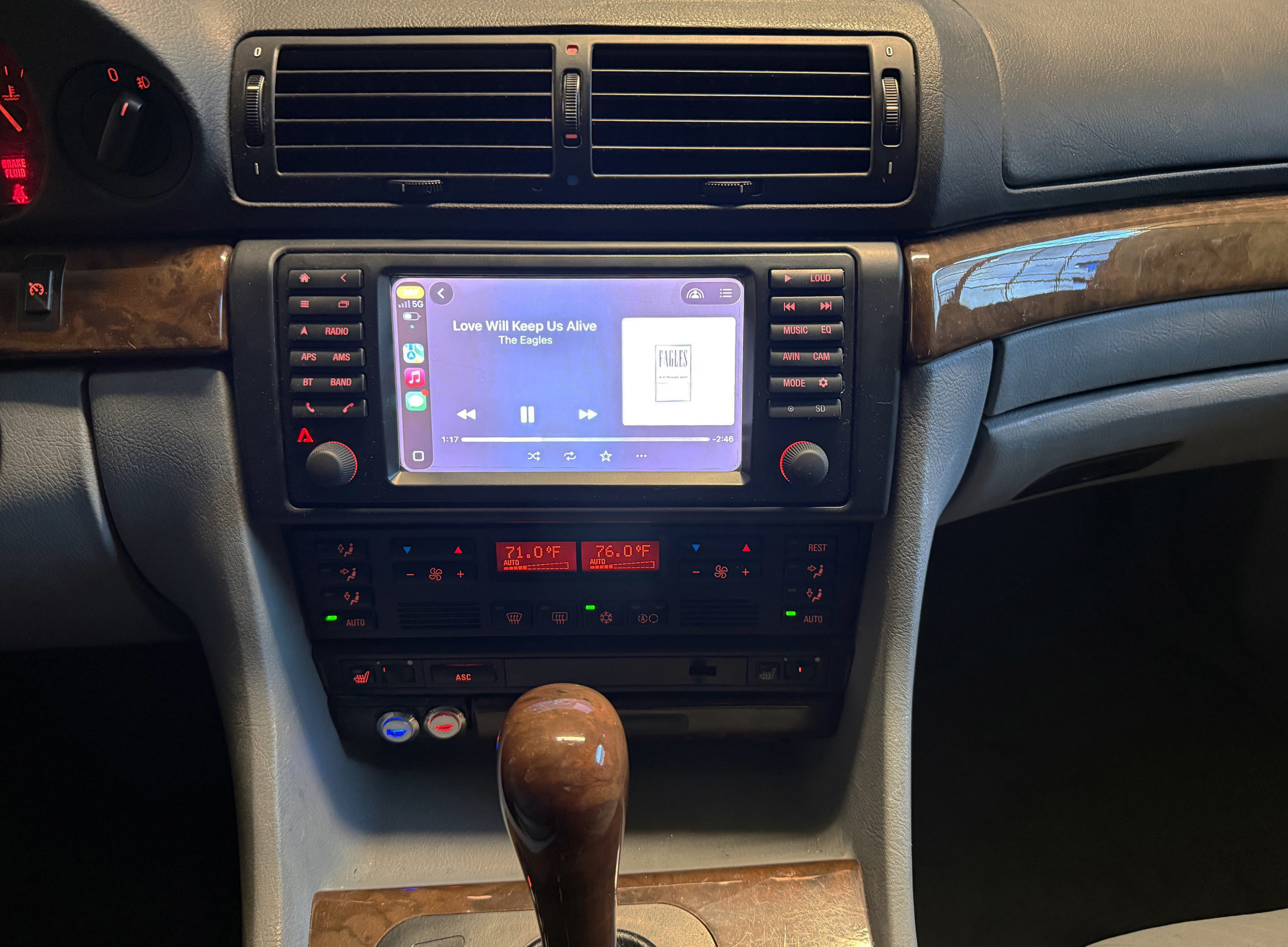
Night time with lights on and amber buttons
Rich Love
Updated 6/28/26 with iBus info.
Updated 6/5/26 with TPMS info
richlove@mac.com